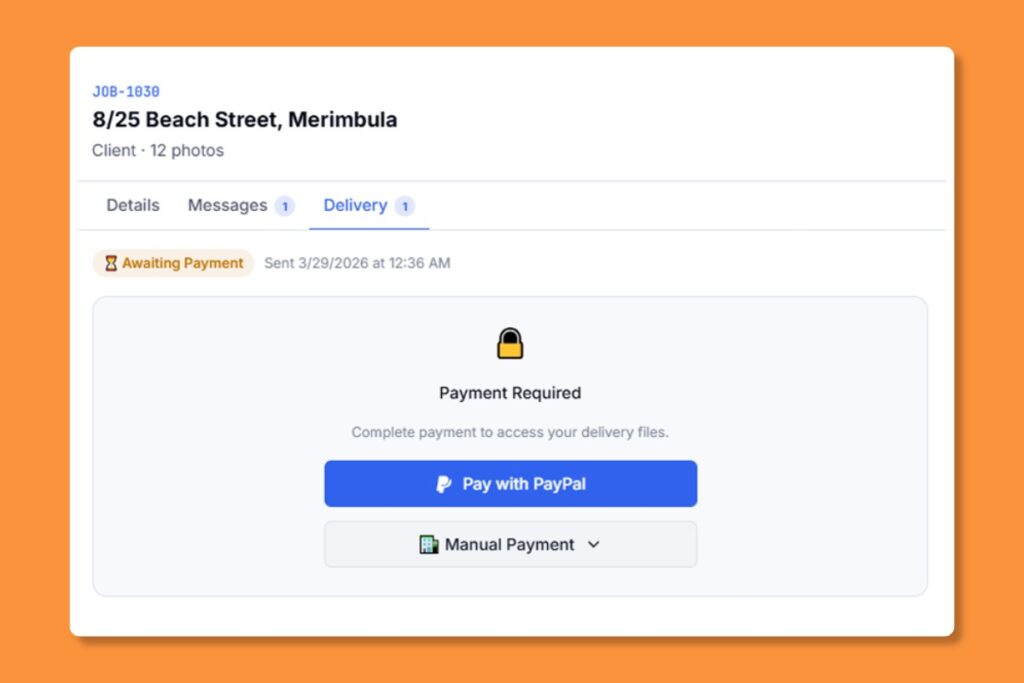
Now that you’ve had a chance to explore our new client portal, https://portal.beepec.com/, it’s time to dive deeper into its powerful features and learn how to effectively manage your orders with ease. Whether you’re tracking order status, communicating with our team, accessing support related to your orders, or checking invoices, our portal has you covered. Let’s walk through each of these functionalities step by step:
Tracking Order Status #
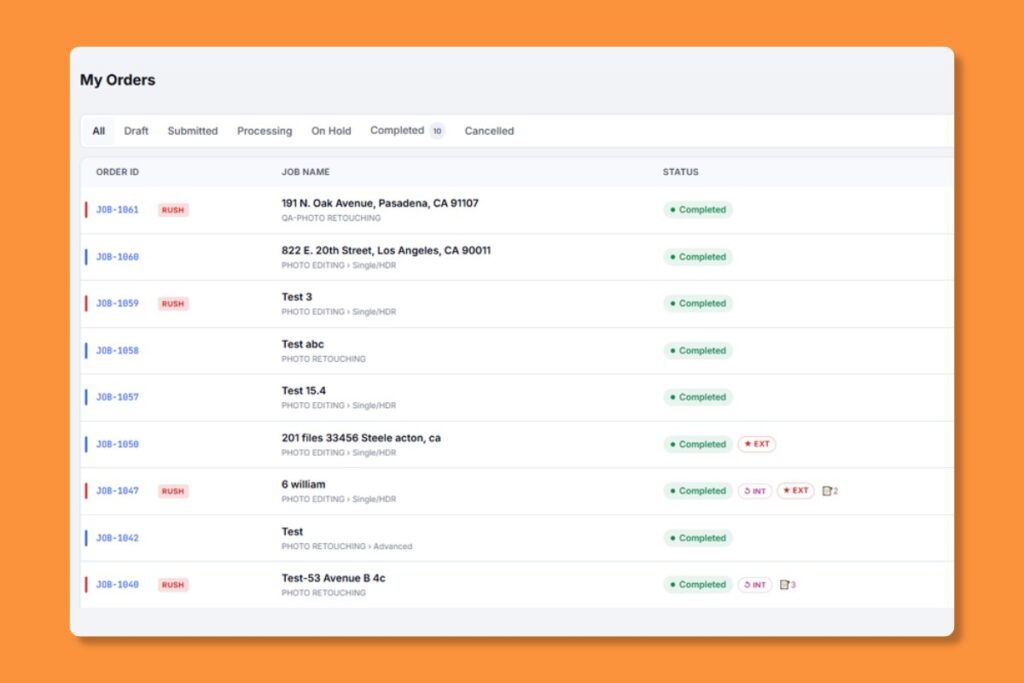
Keeping tabs on the status of your orders is now simpler than ever. Once logged into your account, navigate to the “Orders” section of the portal. Here, you’ll find a comprehensive list of all your orders, along with their current status. From “Draft” to “All” and everything in between, you’ll have real-time visibility into the progress of each order, allowing you to plan accordingly and stay informed every step of the way.
- Draft: Incomplete job saved for later — not yet in the editing queue
- Submitted: Client submitted order awaiting our team review before entering production
- Processing: Our team is actively working on your order.
- On Hold: Waiting for more information or we need additional information check
- Completed: Your order is finished and ready for download.
- Cancelled: Order was cancelled by admin or client request
Order Details #
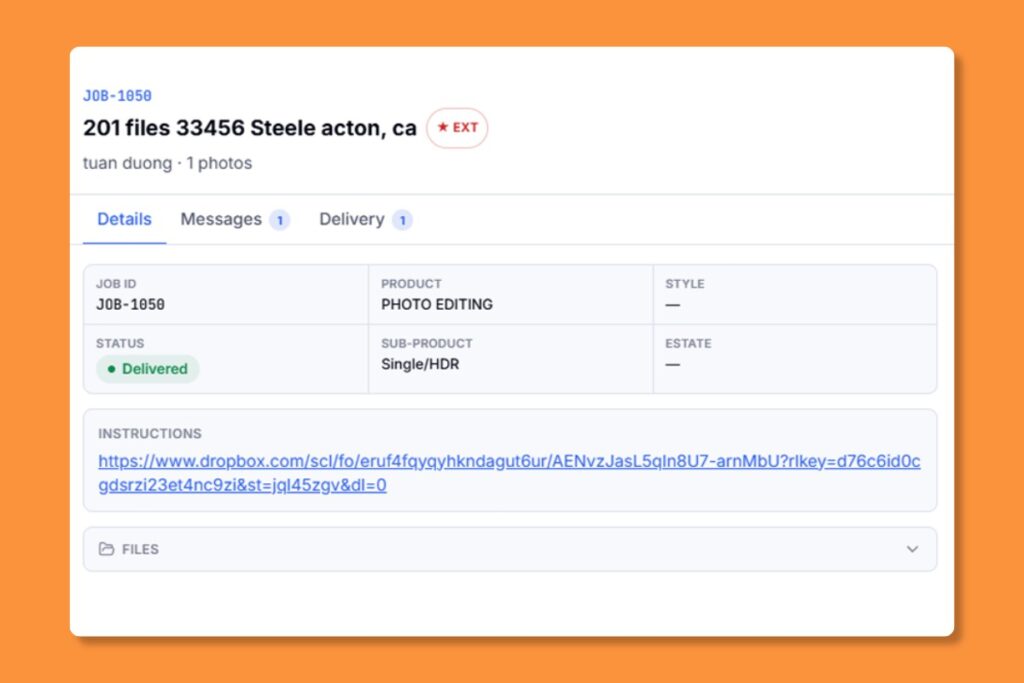
Click any order to open the Job Drawer where you can:
- View order details and attached files
- Send messages to your account manager
- Track progress and estimated delivery time
- Download completed files
Communicating with Our Team #
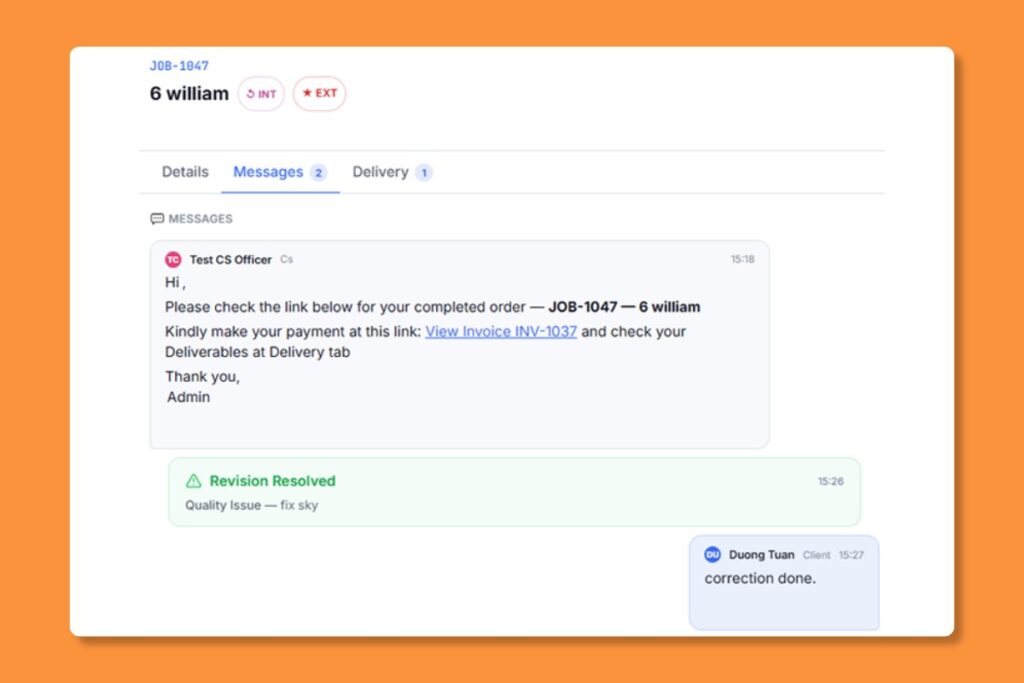
Effective communication is key to a successful partnership, which is why we’ve integrated robust communication tools directly into our client portal. Need to provide additional instructions for an order? Have a question about delivery timeline? Simply send us a message right in related order to initiate a conversation with our dedicated support team. With our built-in messaging system, staying in touch has never been easier.
Requesting Revisions #
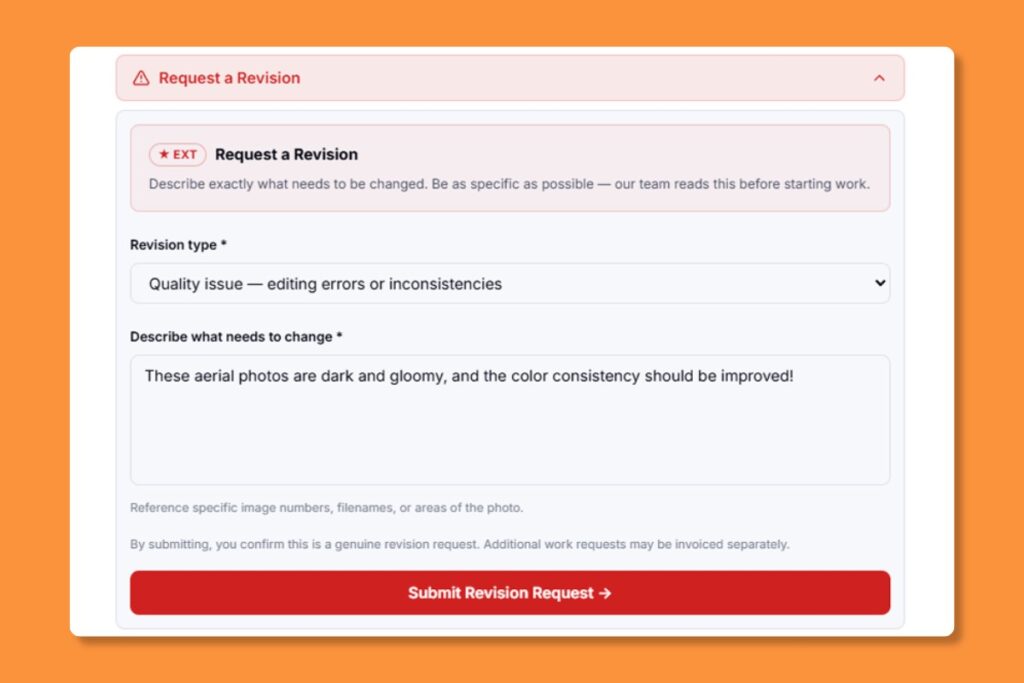
We understand that sometimes questions or issues may arise during the order fulfillment process. That’s why we’ve made it simple to access support directly from within the client portal. Whether you need assistance with order revision, have concerns about quality, or require technical support, our knowledgeable support team is just a message away. Click on the “Request Revision” button within the order to submit your inquiry, and rest assured that we’ll respond promptly to address your needs and ensure your satisfaction.
If the delivered work needs adjustments:
- Open the completed order
- Click the “”Request Revision”” button
- Describe the changes needed and optionally upload reference files
- Submit” our team will prioritize your revision
In-Order Messaging #
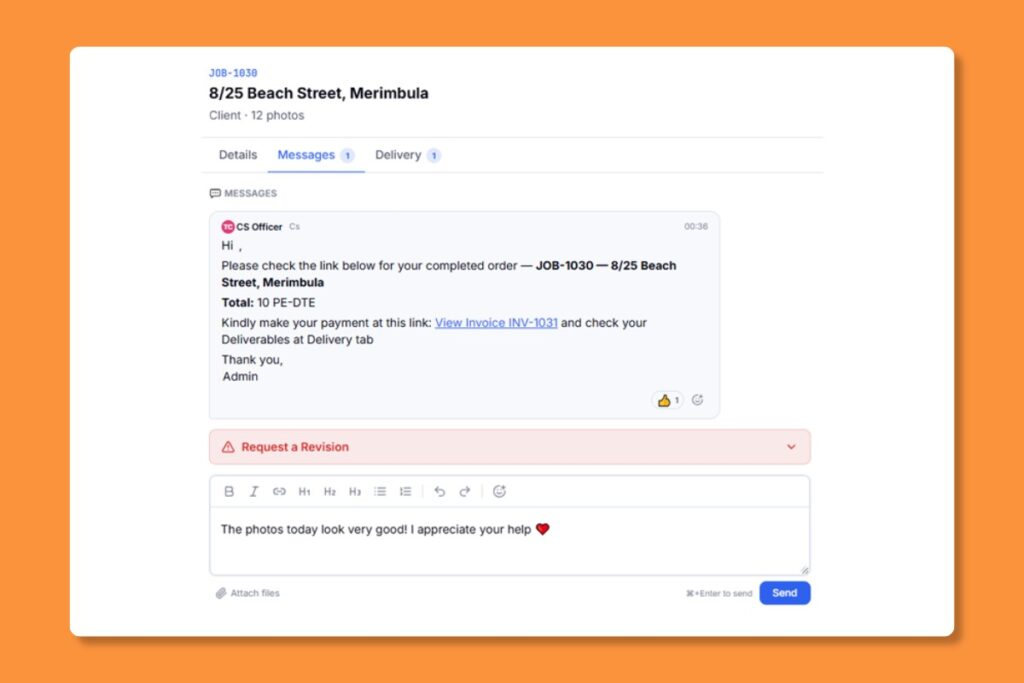
Each order has a built-in Messages tab for direct communication with your account team.
How to Send a Message #
- Open any order from your Orders list
- Switch to the Messages tab
- Type your message in the text area
- Attach files if needed using the paperclip icon
- Press Send
Notifications #
You’ll receive email notifications when your account team replies. You can customize notification preferences from top right avatar/Settings.
Download Options #
When your order is completed, you’ll receive a notification with download access.
Direct Download #
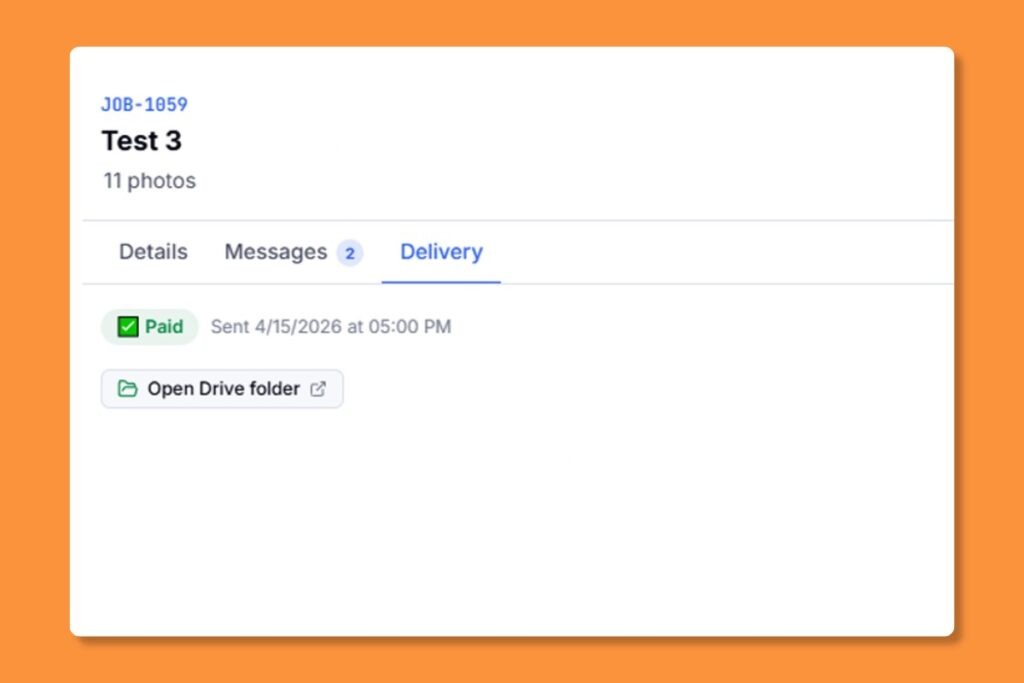
Open the completed order and click the download links in the Deliverables section. Files are available as individual downloads or as a ZIP archive.
Google Drive Delivery #
If your account is configured for Google Drive delivery, completed files are automatically placed in a shared Google Drive folder. Look for the Drive folder link in your deliverables.
Dropbox Delivery #
Similarly, Dropbox-configured accounts receive files directly in a shared Dropbox folder. Click the Dropbox folder link to access your files.
Pay to Download #
Some deliveries may require payment before download. In this case, you’ll see a payment prompt with options to pay by card, PayPal, or account balance.